Botsplash Chat Widget Installation Guide
This guide provides step-by-step instructions for installing and customizing the Botsplash Chat widget on your website.
I. Adding Widget to Webpage
1. Log in to the Botsplash Platform
- Use your Administrator credentials to log in at app.botsplash.com
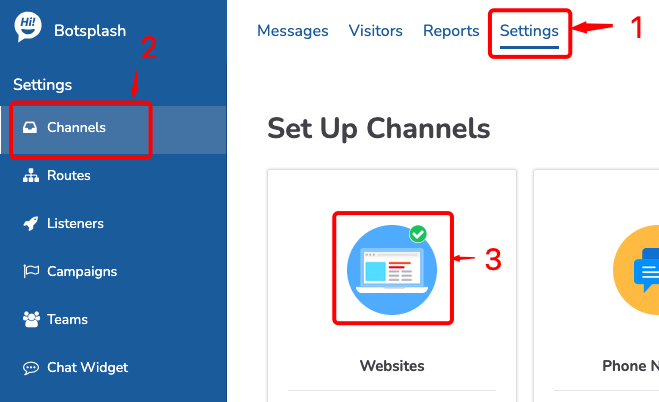
2. Whitelist your website/domain
- From the top navigation bar, click on Settings
- Once in Settings, navigate to the Channels page
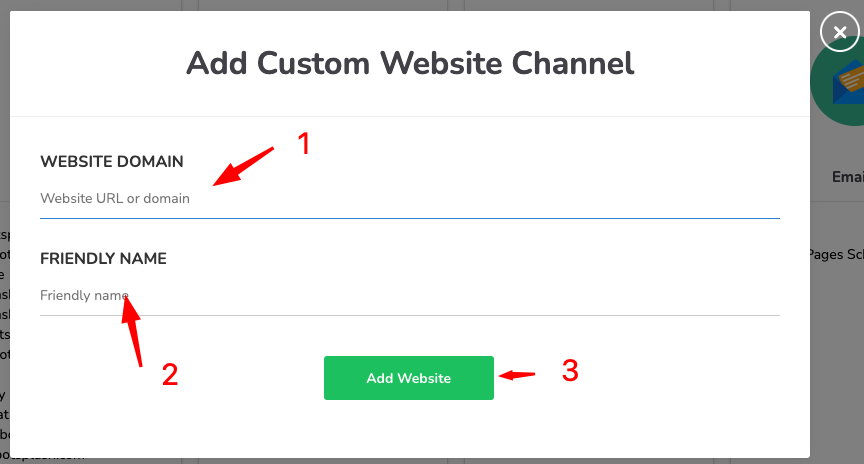
- Click on the Websites icon to add new website
- Add your website domain or URL, give friendly name and click “Add Website”
3. Copy the Chat Widget Script
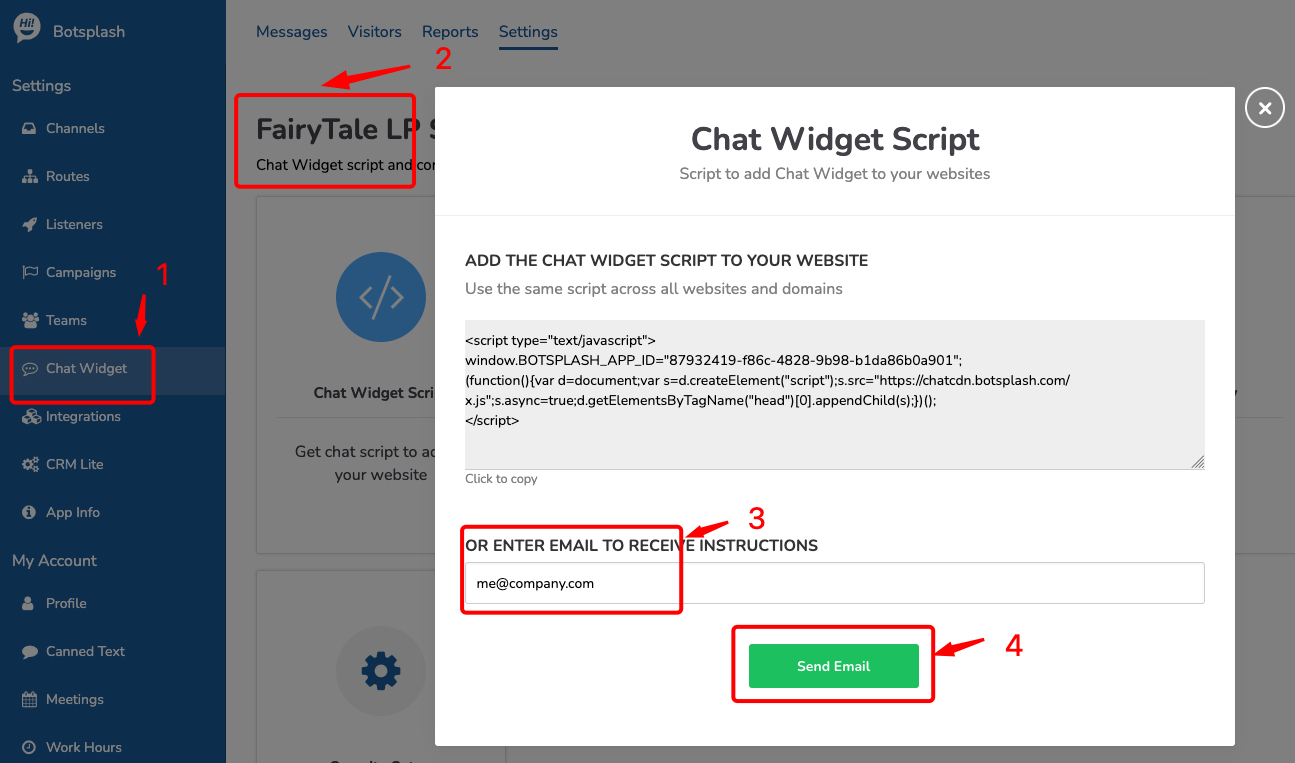
- In the left-hand menu, select Chat Widget
- Find the Copy Chat Widget script button or box and click it to copy the widget’s script snippet

4. Add the Script to Your Website
- Open your website’s HTML file
- Paste the script just before the closing
</body>tag on the pages where you want the chat widget to appear - Save and publish/upload your changes
5. (Optional) Email the Script to Yourself
- Select the desired Chat Widget configuration from the list (if there are multiple)
- Click on Chat Widget Script
- Enter your email address and click Send Email to receive a copy of the script in your inbox
II. Setup to Open Chat Widget on Button Click
After the chat script is on your webpage, you can customize it to open when a user clicks a specific button.
HTML Example:
<button onclick="window.BOTSPLASH_WIDGET.open()">Chat with us</button>
Note: Replace f24c30ff-9dde-4b30-a47c-c4acf4cab30d with your actual account ID found in the chat widget script.
III. Pre-populate Chat Widget with Visitor Data
You can send information collected on your site into the Chat Widget by adding the following configuration before the widget script:
<script>
window.BOTSPLASH_APP_PARAMS = {
  "routeKey": "visitor_quick_chat",
  "visitor": {
    "firstName": "VISITOR_FIRST_NAME",
    "lastName": "VISITOR_LAST_NAME",
    "email": "VISITOR_EMAIL",
    "phoneNumber": "VISITOR_PHONE",
    "state": "VISITOR_STATE",
    "zipCode": "VISITOR_ZIPCODE",
    "custom": {
      "loanpurpose": "VISITOR_LOAN_PURPOSE"
    }
  }
}
</script>
Followed by the Chat Widget Script:
<script type="text/javascript">
window.BOTSPLASH_APP_ID="f24c30ff-9dde-4b30-a47c-c4acf4cab30d";
(function(){d=document;s=d.createElement("script");s.src="https://chatcdn.botsplash.com/x.js";s.async=true;d.getElementsByTagName("head")[0].appendChild(s);})();
</script>
Note: For secure transfer of visitor information or other parameters, please contact Botsplash to encrypt the payload with JWT keys.
IV. Customize Chat Widget Theme and Behaviors
Accessing Customization Settings
Navigate to Settings → Chat Widget in your Botsplash admin panel to customize various aspects of your chat widget.
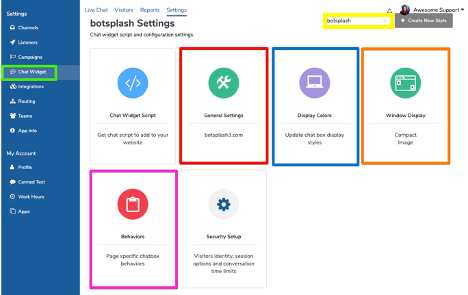
The yellow rectangle indicates where you can create different styles of chat widgets. This allows a different styled widget for different landing pages to ensure branding consistency.
Available Customizations
General Settings
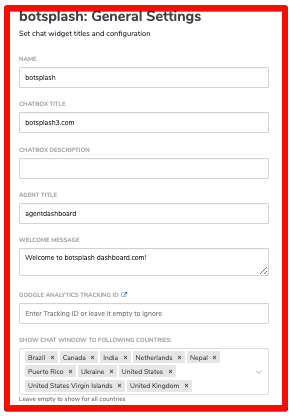
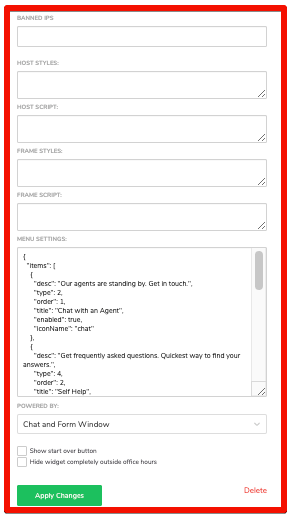
General settings (red rectangle) will open the general options of customization for the chat widget, including:
- Widget name, title, and description
- Welcome message customization
- Geographic segmentation options
- IP address blocking capabilities
Display Colors
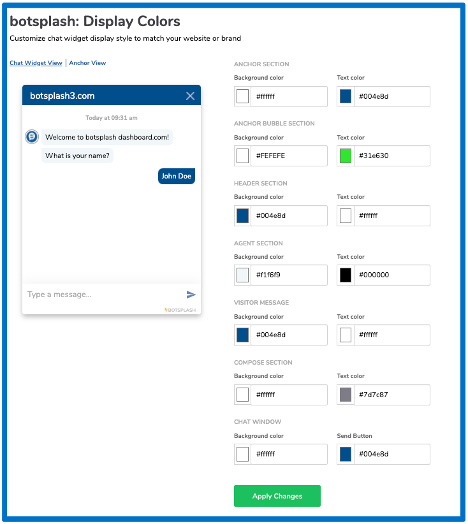
In the display colors menu, you can:
- Customize the visual appearance of your chat widget
- Match your brand colors and styling
Behaviors
- Control how the widget appears on your website
- Set display delays
- Configure click-to-open functionality
- Adjust visibility settings
Behaviors are a way to customize how your chat widget shows up on a website, including whether it only opens on a click, there is a delay in when it is visible, etc.
Important: Any changes to these settings will require a 5-10 minute wait before they appear live on your website.
Complete Installation Example
Here’s a complete example of how to install the widget with pre-populated data:
<!DOCTYPE html>
<html>
<head>
    <title>Your Website</title>
</head>
<body>
    <!-- Your website content -->

    <!-- Botsplash Configuration (optional) -->
    <script>
    window.BOTSPLASH_APP_PARAMS = {
      "routeKey": "visitor_quick_chat",
      "visitor": {
        "firstName": "John",
        "lastName": "Doe",
        "email": "john.doe@example.com",
        "phoneNumber": "555-1234",
        "state": "CA",
        "zipCode": "90210"
      }
    }
    </script>

    <!-- Botsplash Widget Script -->
    <script type="text/javascript">
    window.BOTSPLASH_APP_ID="YOUR_ACCOUNT_ID_HERE";
    (function(){d=document;s=d.createElement("script");s.src="https://chatcdn.botsplash.com/x.js";s.async=true;d.getElementsByTagName("head")[0].appendChild(s);})();
    </script>
</body>
</html>
Support
For additional support or questions about widget installation, please contact the Botsplash support team or refer to your administrator documentation.